Vial Keyboard Layers: every layer of my keyboard on one screen
A one-page map of a Vial layout, for when you keep forgetting what's on each layer.
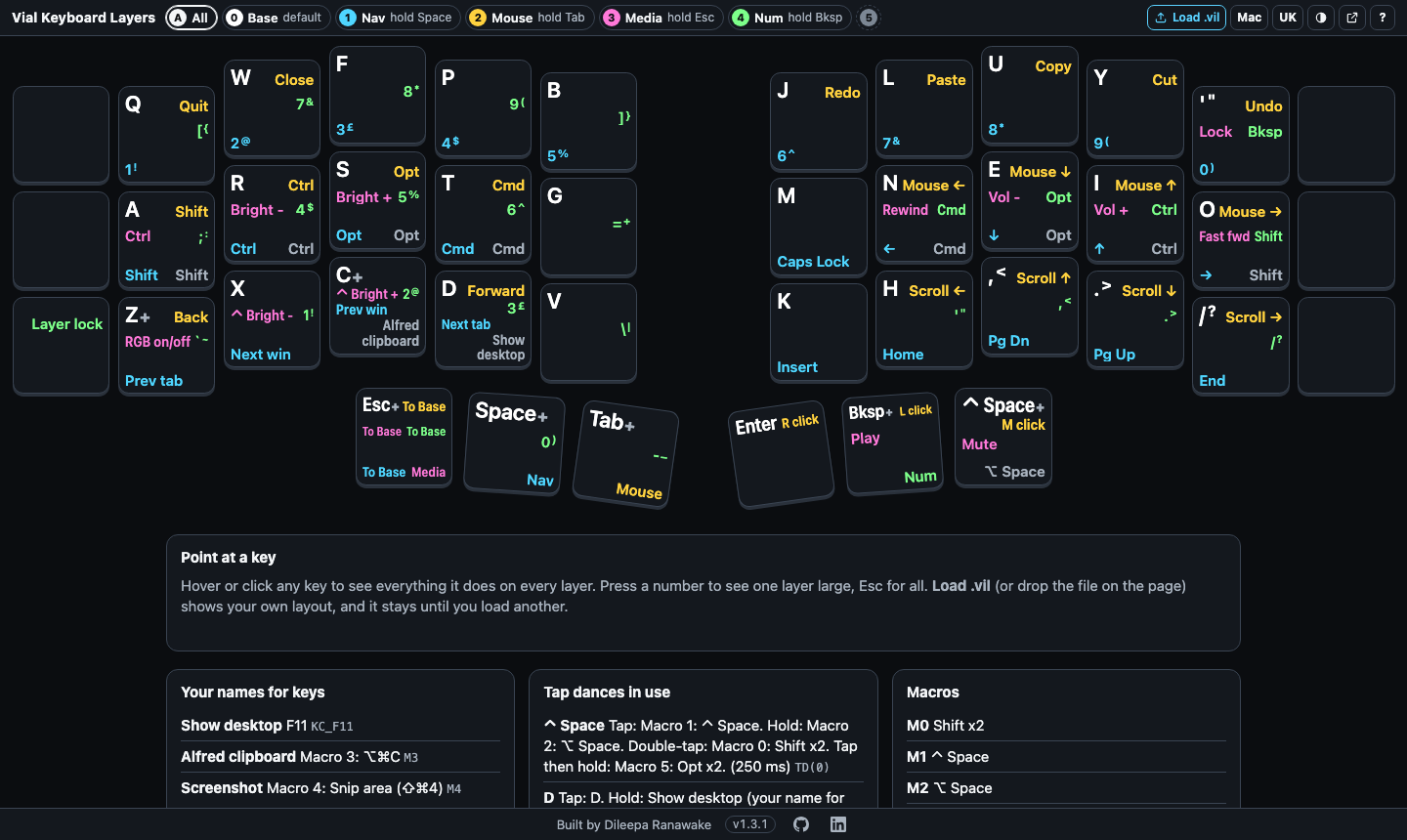
A not-so-fun bout of RSI made me a bit of a keyboard nerd. It sent me down the rabbit hole of split and custom keyboards (the best rabbit hole I've been down). I didn't stop at the hardware: a Corne, a Miryoku-style layout, and Colemak-DH instead of QWERTY, all at once.
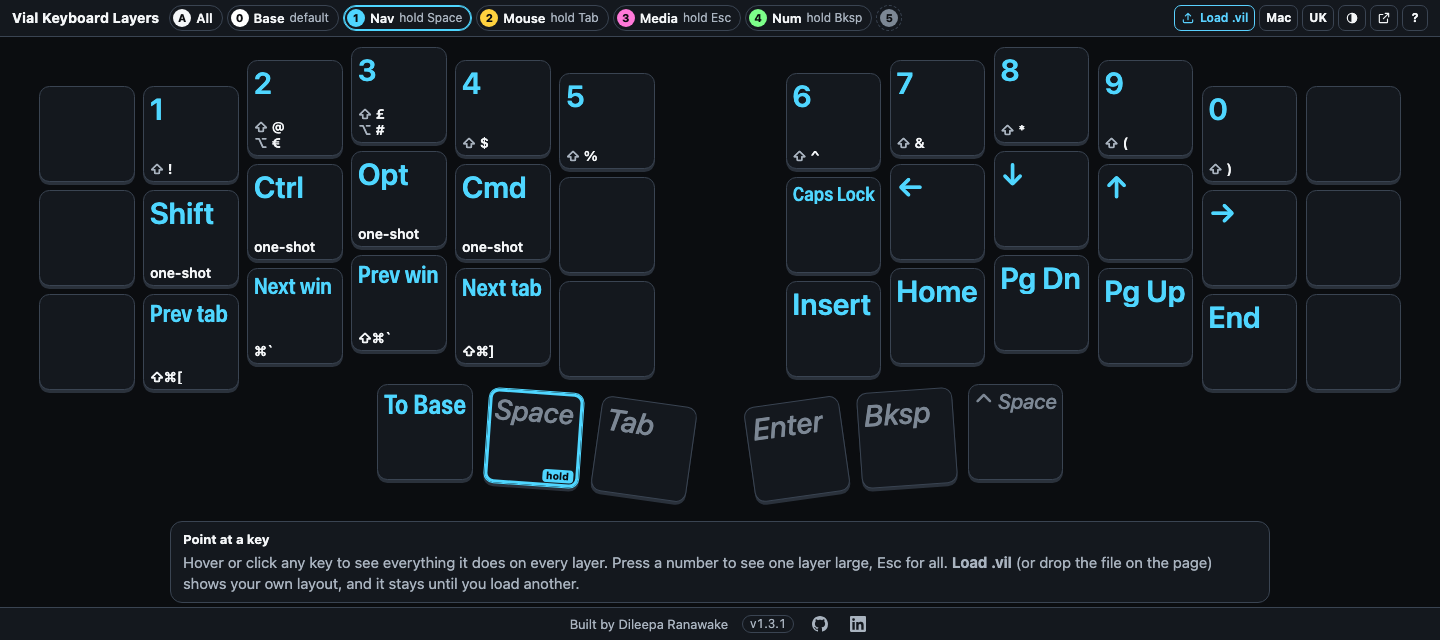
A Corne has 42 keys. Everything a full keyboard does still has to live somewhere, so it lives on layers. Hold Space and the right hand becomes arrows, Home and Page Down. Hold Backspace and the left hand becomes a number pad. There are layers for media keys and the mouse too.
The hard part is remembering all of it. While I'm learning, I forget what's on each layer constantly, and looking it up was slow. I set the keyboard up with Vial, which shows one layer at a time, with some keys as raw codes like TD(3) or LSFT_T(KC_A). Answering "where's Page Down?" meant opening the app, clicking through layers and decoding keycodes. The lookup took longer than the keystroke it was for!
Then there's the app itself. The Vial desktop app for Mac is Intel-only, so on Apple silicon it runs through Rosetta, and Apple is winding Rosetta down. Apple says macOS 27 is the last release where Rosetta works for apps in general; from macOS 28 it's only kept for some older games. There's a web version of Vial that works in Chrome, but I wanted something I could open in a second.
So I built Vial Keyboard Layers.
It's one web page. You drop in the .vil file Vial saves, and it shows every layer at once, Miryoku-style: each key shows its normal letter, then what it does on each other layer, one colour per layer. Raw keycodes become plain words, so LSFT_T(KC_A) reads as A (Shift when held) and LGUI(KC_Z) reads as Undo.
A few things that have helped me while learning:
- Press a number to see one layer on its own, larger, with the key you hold to get there outlined.
- Hover over a key to see everything it does on every layer, in words.
- See what Shift types, the way a keycap shows it. There's a US / UK switch too, since Shift and
3types£on a UK layout and#on a US one. - Name your own keys. My macro 3 opens Alfred's clipboard, so I named it "Alfred clipboard", and that's what the map shows instead of ⌥⌘C.
The decisions behind it
A few choices shaped it, and each one has a cost:
- One HTML file, nothing to install. There's no server and no build step. The cost: it only knows what's in the file you give it.
- It reads the saved
.vil, not the keyboard. Reading the keyboard directly needs the same browser access Vial web uses, which only Chrome-based browsers have. A saved file works in any browser, and the page can't change anything on your keyboard. The cost: after changing a key in Vial, you save and load the file again. - Nothing leaves your machine. Your layout and the names you give keys stay in your browser's storage. There's no account and nothing is uploaded. The cost: another browser or another machine starts from the example again.
- Offline when I want it. The live page needs the internet. On a Mac it can also run as its own small app, with its own Dock icon, so it works offline too. I open and close it with one hotkey.
If you're learning a layered layout on a Vial keyboard and keep forgetting where things are (like me), give it a try. It's drawn for the Corne; other boards show as a plain grid for now.